Latest Linux Mint edition: LMDE 7 "Gigi"

Nathan

SF VIP
I like to try out various Linux distributions, but as my daily driver I usually prefer Debian or one of the Arch-Linux derivatives like EndeavourOS or Manjaro.

Linux Mint has since it's inception been based on Ubuntu, but with LMDE 7 "Gigi" the decision was made to instead build on Debian, which is the parent distro of Ubuntu.
So, what you get is the stability of Debian and the polish of Mint/Ubuntu. I'm liking the Cinnamon Desktop Environment and LMDE 7 "Gigi" in general, I think I'll keep it for a while.

Linux Mint edition: LMDE 7 "Gigi" Download
 

I will probably upgrade to it soon. I'll have to move my millions of files to my external hard drive or PC Cloud, both of which take forever. Maybe I'll find a much, much faster method - other than deleting the entire mess and starting over.

Thanks for telling us about the Gigi!
 
I switched to LMDE 7 as soon as the stable distro was released. I'd been running LMDE 6 and had no problems but support for the LMDE editions end pretty soon once a new stable LMDE distro is released. Not sure off the top of my head but the support of LMDE 6 will end in 2026, maybe 27 ... I think. Regardless, I don't have a reason not to "upgrade" when a new stable LMDE editon is released, so I went ahead and switched to LMDE 7.

Previously I'd run Linux Mint Mate since about 2009 and each new Mint Mate as it was released. I thoroughly enjoyed Mint Mate. Liked it better than the Mint Cinnamon flagship Mint edition. That said, I like the LMDE version best, even though it has the Cinnamon desktop. It is VERY stable and secure. They'll have to do away with LMDE for me to go back to Mint Mate or Mint Cinnamon although they are fine in their own right. Just a personal preference I guess.
 
I have no idea exactly what you are talking about but I have a friend who is an IT professional and he uses and recommends Linux. I plan to use it for my next computer.
 
Right now I'm running Spark Linux in live session- not installed to a system hard drive. It's another Debian based distribution that, aside from a few included software packages that I'm not familiar with, is pretty much just like Debian. This Sparky Linux has the Mate desktop environment, which has been my favorite, since Mate forked from Gnome 2. I couldn't abide by Gnome 3, too cartoonish, has the feel of a children's electronic toy.
Gnome 2 came with the Linux versions in the early 2000s, very simple and basic, reminiscent of say, Windows 95-98. Mate follows that tradition which I'm thankful for. Anyway, I haven't yet decided if I'm going to install Sparky alongside my present install of LMDE 7.
 
I've used Sparky Linux for a few years now, my go to distro. I prefer the tried and true Xfce desktop. I have it installed on a laptop and my main mini pc. Although for the last few months I have been using my old Dell dual core with Peppermint OS as my daily. It's old and would be considered outdated, but I like the keyboard/trackpad, and the screen.
 
A couple of folks have mentioned downloading and running from USB and that is entirely possible.
But whether running live sessions from USB or installing from USB, it's worth mentioning that it won't work "right out of the download".
What you actually download is an ISO file which must be transferred to a USB by a program specifically for writing ISO files to USB.
Luckily, in LInux Mint editions, there is a program called USB Image Writer that will write the ISO to a USB so the USB can then be used to run a live session or install Linux on a computer.

I've pretty much haven't kept up with Windows and never used a MAC but I don't think there is a native program in either to write an ISO image to USB. Hopefully those more familiar with Windows and MAC will chime in with ISO image writing program suggestions.

For those interested, here is a link to the Linux Mint Forums ... an official user forum that covers all Linux Mint editions
The specific LMDE edition sub-forum is about half-way down the page ... LMDE Forums

EDIT to add: I seldom use the forums and haven't for years. I did in the beginning of my Linux experience but have found that once installed, LInux MInt is glitch free for me and on my computer systems. But the forums are a great place to look around, join and ask questions.
 
Right now I'm running Spark Linux in live session- not installed to a system hard drive. It's another Debian based distribution that, aside from a few included software packages that I'm not familiar with, is pretty much just like Debian. This Sparky Linux has the Mate desktop environment, which has been my favorite, since Mate forked from Gnome 2. I couldn't abide by Gnome 3, too cartoonish, has the feel of a children's electronic toy.
Gnome 2 came with the Linux versions in the early 2000s, very simple and basic, reminiscent of say, Windows 95-98. Mate follows that tradition which I'm thankful for. Anyway, I haven't yet decided if I'm going to install Sparky alongside my present install of LMDE 7.
I went with Linux Mint in about 2009 when Windows dropped support of WinXP.
I easily navigated the Linux Mint Mate desktop right away because of all the various Linux versions out there, the Mate desktop was the most WinXP like. Truth be known, if Microsoft had not done away with WinXP, I'd probably still be there. I really liked XP at the time.

There was indeed a little learning curve going from XP to Linux Mint but that is true when switching any operating system (OS) or even working with a new edition within a given OS such as Windows. For example, Win11 ain't XP.

All that babble said, for someone just coming from Windows to Linux, the Mate desktop versions are the easiest to assimilate to.
 
I use Ubuntu which is free to download. If you have it on a USB stick, you have the choice of either trying it - ie. run from the USB, or installing it.
If you have Windows, you can dual boot Ubuntu alongside Windows and choose whichever one you want to use.
Thank you, give me something to try over the holidays...
@mike4lorie
Download a version of Linux and boot to a USB stick to check out before installing. If you have an older laptop or pc then Linux should run perfectly with good performance.

So it needs to be a empty USB... Thanks for your input also...
 
@mike4lorie ... Hope someone will chime in to correct me if I'm wrong, but I don't think there are any programs to write ISO files to USB.

One USB Image Writer program you could use on Windows is ... Rufus

First you'll want to download the ISO file from the Linux Distro of your choice. @Nathan provided some links in his OP.

A blank USB drive should be formatted to FAT32 or NTFS before writing a Linux ISO file to it in Windows. FAT32 is commonly used for compatibility, while NTFS may be necessary for larger ISO files. I would recommend formatting the a 4GB (or larger if that's all you have) USB to FAT32.

Creating a Bootable USB from a Linux ISO on Windows​

To write a Linux ISO to a USB drive using Windows, you can use several software options. Below is a common method.

Using Rufus​

  1. Download Rufus: Get the latest version from the official website.
  2. Insert USB Drive: Connect your USB drive to the computer. Ensure it has at least 4GB of space and back up any important data, as this process will erase it.
  3. Open Rufus: Launch the application.
  4. Select USB Drive: In Rufus, choose your USB drive from the "Device" dropdown menu.
  5. Select ISO File: Click on "Select" and browse to the Linux ISO file you downloaded.
  6. Partition Scheme: Choose the appropriate partition scheme (usually MBR for BIOS or UEFI).
  7. Start the Process: Click "Start" to begin writing the ISO to the USB. Confirm any warnings about data loss.
  8. Completion: Wait for the process to finish. Once done, you will see "READY" in Rufus.

Once the ISO image is written to the USB, then you can use that USB to boot a computer into LInux and either run a live session to check things out and/or install Linux to the computer.

Just be sure your boot order in the computer bios is set to take a look at the USB drive(s) first. If the USB drive(s) aren't listed first in the bios boot order, the computer won't boot from that USB you just made with the ISO image written to it.

Good luck :)
 
Both Raspberry Pi Imager or balenaEtcher will automatically format/clear a drive during the imaging process. No need to erase or format, of course make sure any valuable data is removed and saved.
 
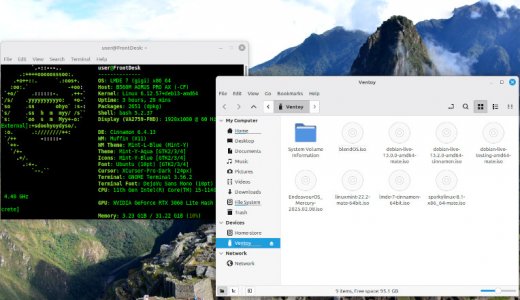
Ventoy is a drop-dead simple utility that formats a USB drive so that an .ISO image can be copy n pasted / drag n dropped onto it.

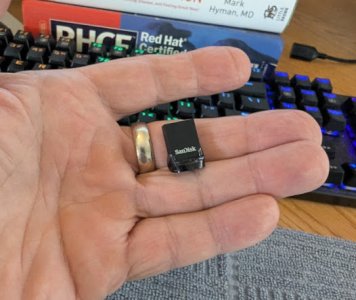
Here's my 128GB Ventoy USB:
PXL_20251117_195340690.MP.jpg

This is a screenshot of the USB drive, opened in the file manager, showing several Linux .ISO files that can be booted to.

Screenshot from 2025-11-17 11-55-04.jpg


I have another Ventoy formatted drive that has Windows 10 and Windows 11 .ISO files on it.

Ventoy


Back
Top