
Does anyone besides me have trouble changing avatars or is it I'm so computer illiterate that I can't do it? I changed it once by accident (and a lot of failed attempts) but this time I can't get the website to do it. I'd kind of like to change them seasonally just for a change, but I'm having trouble doing it.

You are using an out of date browser. It may not display this or other websites correctly.
You should upgrade or use an alternative browser.
You should upgrade or use an alternative browser.
Does Anyone Besides Me Have Difficulty changing Avatars
- Thread starter TeePee
- Start date

Kadee
SF VIP
- Location
- Adelaide city

PeppermintPatty
🐢. 🐳. 🐢
- Location
- Canada
Cick on your name or avatar
Cick on edit on your avatar
Click choose file and upload it
Press ok to complete
Cick on edit on your avatar
Click choose file and upload it
Press ok to complete
I changed mine a couple of days ago….click on the T ..your avatar …then click on the T again ..it beings up Edit on the T ….as in your case
I do click the "T" but when I click okay to change me file it doesn't do anything. I don't know if my pictures are too big or what. I did have a picture of flowers in a vase but playing around, I eliminated that and the generic T came back up. The directions say to drag the old Avatar first and then insert the new one, but I can't get the "T" to drag. I guess I should buy the book "Computers for Dummies". Thanks for your input though.
Cick on your name or avatar
Cick on edit on your avatar
Click choose file and upload it
Press ok to complete
When I press the "okay" it doesn't do anything, but thanks for your input.
PeppermintPatty
🐢. 🐳. 🐢
- Location
- Canada
You shouldn’t have to drag any pictureI do click the "T" but when I click okay to change me file it doesn't do anything. I don't know if my pictures are too big or what. I did have a picture of flowers in a vase but playing around, I eliminated that and the generic T came back up. The directions say to drag the old Avatar first and then insert the new one, but I can't get the "T" to drag. I guess I should buy the book "Computers for Dummies". Thanks for your input though.
You pick the photo you want and leave a checkmark. Then you upload the picture
I’m not sure why it’s not workingWhen I press the "okay" it doesn't do anything, but thanks for your input.
It’s really quite simple
Kadee
SF VIP
- Location
- Adelaide city
Maybe look online for say …free Christmas avatars just as an example ….or maybe I can PM you one to try …I do click the "T" but when I click okay to change me file it doesn't do anything. I don't know if my pictures are too big or what. I did have a picture of flowers in a vase but playing around, I eliminated that and the generic T came back up. The directions say to drag the old Avatar first and then insert the new one, but I can't get the "T" to drag. I guess I should buy the book "Computers for Dummies". Thanks for your input though.
depending on what device you use you should be able to just hold them down and save to photos to,use for a avatar

hollydolly
SF VIP
- Location
- London England
you have to make your pictures very small.. upload them to Postimage... then use the drop down menu to make them 150x150... then save that to your computer, then upload that picture to your avatar..I do click the "T" but when I click okay to change me file it doesn't do anything. I don't know if my pictures are too big or what. I did have a picture of flowers in a vase but playing around, I eliminated that and the generic T came back up. The directions say to drag the old Avatar first and then insert the new one, but I can't get the "T" to drag. I guess I should buy the book "Computers for Dummies". Thanks for your input though.
Postimages — free image hosting / image upload
PeppermintPatty
🐢. 🐳. 🐢
- Location
- Canada
That’s a great idea. Send her a few available avatars to useMaybe look online for say …free Christmas avatars just as an example ….or maybe I can PM you one to try …
depending on what device you use you should be able to just hold them down and save to photos to,use for a avatar
Maybe look online for say …free Christmas avatars just as an example ….or maybe I can PM you one to try …
depending on what device you use you should be able to just hold them down and save to photos to,use for a avatar
Thanks, as you can tell, that image downloaded. I guess my pictures are just too large. That's something I'll have to work on. I hope I'll be able to change this picture after Christmas. lol!!!
Kadee
SF VIP
- Location
- Adelaide city
I use a iPad ….so it’s Different to using a mouse …laptop / desktop
you have to make your pictures very small.. upload them to Postimage... then use the drop down menu to make them 150x150... then save that to your computer, then upload that picture to your avatar..
Postimages — free image hosting / image upload
Thanks hollydolly, you and I have been through this before. I guess I'm just a slow learner.
Kadee
SF VIP
- Location
- Adelaide city
Looks like you managed to do your Avatar ……Thanks, as you can tell, that image downloaded. I guess my pictures are just too large. That's something I'll have to work on. I hope I'll be able to change this picture after Christmas. lol!!!
 I’ve got a seperate folder on my iPad just for avatars
PeppermintPatty
🐢. 🐳. 🐢
- Location
- Canada
You did it .Thanks, as you can tell, that image downloaded. I guess my pictures are just too large. That's something I'll have to work on. I hope I'll be able to change this picture after Christmas. lol!!!
Good stuff !
Congratulations !
It’s a really cute avatar !
Love it.

Looks like you managed to do your Avatar ……View attachment 471330I’ve got a seperate folder on my iPad just for avatars
That's above my pay grade, I think. lol!!!
Kadee
SF VIP
- Location
- Adelaide city


MarciKS
Dust Bunny Whisperer
i find resizing them to 400 x 400 seems to help. are they jpg or png files?I do click the "T" but when I click okay to change me file it doesn't do anything. I don't know if my pictures are too big or what. I did have a picture of flowers in a vase but playing around, I eliminated that and the generic T came back up. The directions say to drag the old Avatar first and then insert the new one, but I can't get the "T" to drag. I guess I should buy the book "Computers for Dummies". Thanks for your input though.
also if they're too big there will be a message that pops up.
I hate to admit it, but I don't know a jpg file from a png file. I just know basic computer skills. I need to get on You Tube and study up on it. With much effort and help from some you and some of the other people on SF, I was able to change my Avatar after playing around with it for awhile. I just hope I can get Mrs Santa and her reindeer off after Christmas. lol!!!i find resizing them to 400 x 400 seems to help. are they jpg or png files?
also if they're too big there will be a message that pops up.
hollydolly
SF VIP
- Location
- London England
always use jpg for the forum..... lovely photo..well doneI hate to admit it, but I don't know a jpg file from a png file. I just know basic computer skills. I need to get on You Tube and study up on it. With much effort and help from some you and some of the other people on SF, I was able to change my Avatar after playing around with it for awhile. I just hope I can get Mrs Santa and her reindeer off after Christmas. lol!!!
Thanksalways use jpg for the forum..... lovely photo..well done


BJintheUK
Member
- Location
- Borehamwood, Hertfordshire, UK
Thanks
Because my memory's going, I often can't remember how to do things on the PC either. However, when it comes to resizing pictures I put them into Microsoft Paint, then click on the 'Resize' button at the top on the 'Home' tab, but under the 'Crop' button.

I then get a small screen with several boxes on it. This is the small screen I'm talking about.
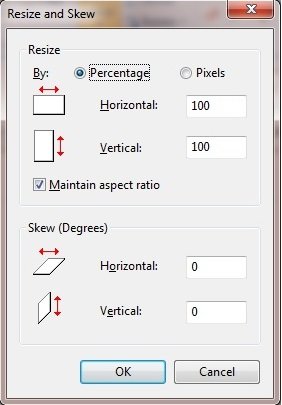
On this screen I click on the 'Pixels' button so that I can see exactly how big the picture I'm resizing actually is.
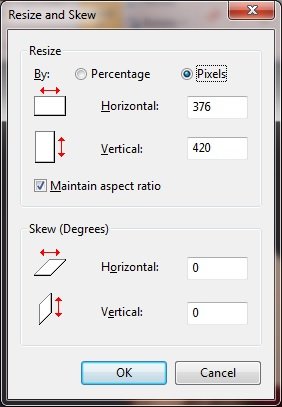
This one is 376 pixels horizontal by 420 pixels vertical.
I can now change the numbers in one of the boxes, and because the 'Maintain aspect ratio' box is ticked, the numbers in the other box will also change so that at the new size the picture will stay looking the same.
When I'm happy that I've got the size I want, I click on the 'OK' button at the bottom of the screen and it closes. Back at the opening screen again I click on the tab to the left of the 'Home' tab in order to open the Save and Print menu.

Note that I've put a red circle round the tab I'm talking about.
With the Save and Print menu open I click on the 'Save As' option in the drop down box, and another box opens to the side of this, showing a list of formats the picture can be saved in, including PNG, JPEG, BMP, etc.
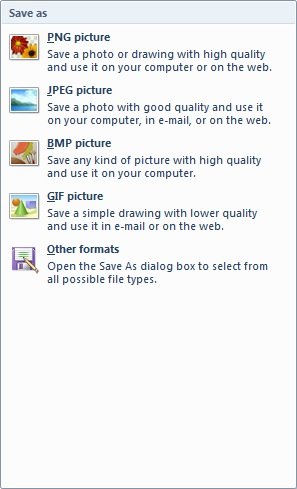
I normally select JPEG and then once I've done that I can choose what to call the picture and where to save it.
With the picture saved I can then select it for my new avatar, or whatever I wanted to resize the picture for.